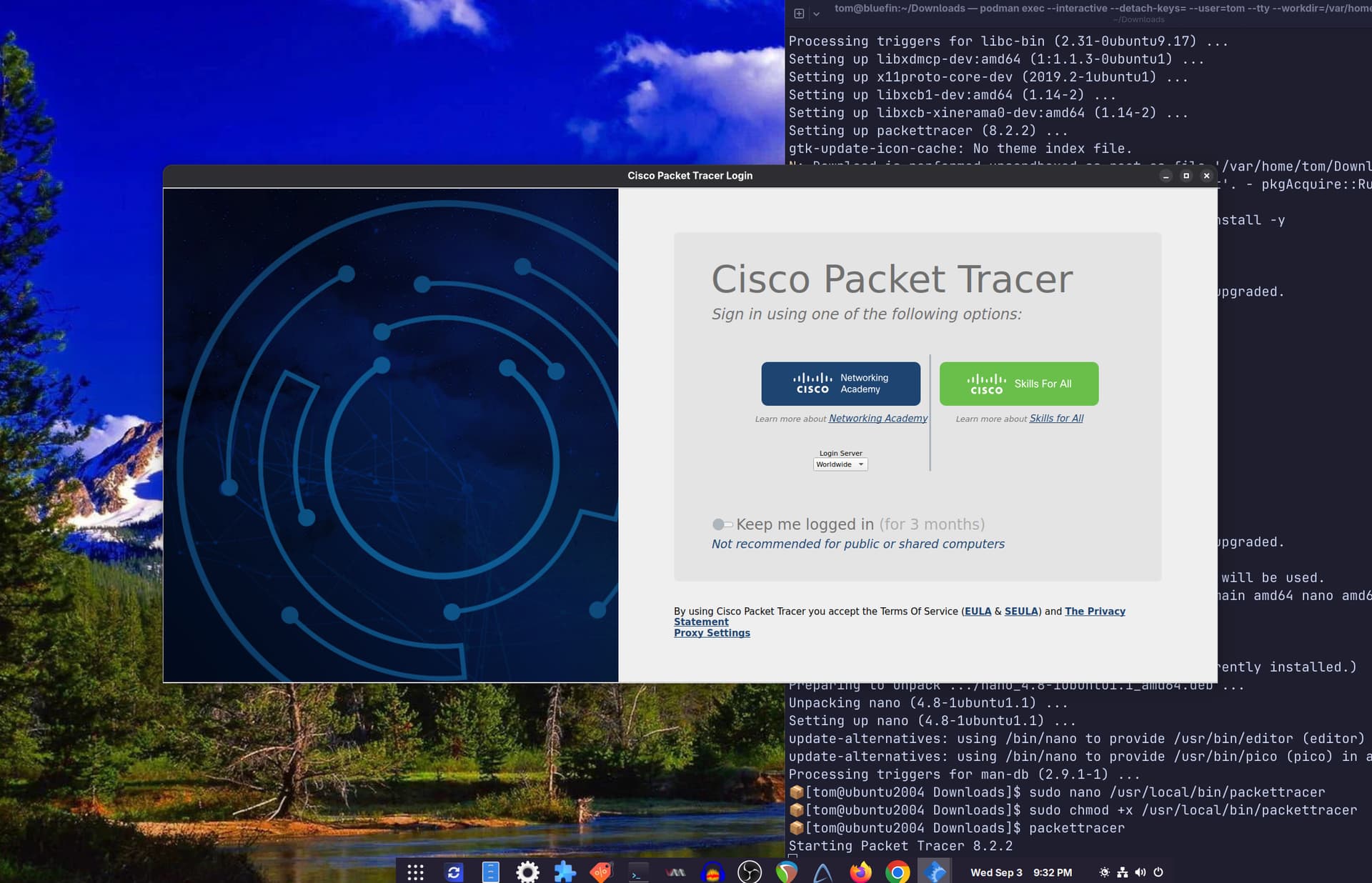
which after actually installing packet tracer via this command sudo apt-get install ./PacketTracerFileNameHere.deb
or dpkg -i ./Packet_Tracer822_amd64_signed.deb
another issue props up, which is when trying to actually open packet tracer (which for the cli invocation is packettracer) doesn’t open anything other than it printing the text “Starting Packet Tracer 8.2.2”
Is there a way to actually start up and getting the GUI to open and to work?
This may sound silly, but have you queried chatgpt about your issue? I was curious, and just did, using the prompt: “what are the steps to install cisco packet tracer in a distrobox on a silverblue host system.”
It recommended a series of additional libs to install. Perhaps something to consider?
Hopefully someone here has the knowledge to help you, but it seems like a pretty specific need.
I have a personal ban on AI but for this case, I would have to concede. going ahead and copy and pasting the commands listed here, it now made it where packet tracer is now crashing with the error
/usr/local/bin/packettracer: line 8: 11664 Aborted (core dumped) ./PacketTracer "$@" > /dev/null 2>&1 which is concerning. And trying to go through you.com for answers I found some but it is still crashing, rather not rely on AI like this if there is a person who does know or could figure it out, as I don’t know how much time would be wasted with LLMS, but here. update the site unfortantely is not allowing me to send images.
I will try to figure something out and test it abit more,but right now I will be busy with other classes.
which made two messages, but did install regardless
N: Download is performed unsandboxed as root as file '/home/deberian/Downloads/libegl1-mesa_23.0.4-0ubuntu1.22.04.1_amd64.deb' couldn't be accessed by user '_apt'. - pkgAcquire::Run (13: Permission denied)
N: Download is performed unsandboxed as root as file '/home/deberian/Downloads/libgl1-mesa-glx_23.0.4-0ubuntu1.22.04.1_amd64.deb' couldn't be accessed by user '_apt'. - pkgAcquire::Run (13: Permission denied)
went ahead and go to install packet tracer this method anyways.
And still doesn’t open, but it doesn’t crash anymore.
Looking up and asking you.com and it asked to install mesa-utils and running glxinfo gives this prompt Error: unable to open display
So it may just that the display isn’t able to open for packettracer to actually open?
I once again asked chatgpt for assistance with this error message. Basically it comes down to missing libraries. It recommended the following ldd command to see what dynamic library dependencies are missing. Here is the command recommended and what I got.
Whatever you get should be an indicator of what it thinks you will need to install. However, if you look in /opt/pt/bin all the libraries are there. At least they are for me. So it looks like a path issue. packettracer doesn’t know where to look for the libraries.
For me, it would be another chatgpt question about how to deal with that. At this point I have to tap out since there is not anything more I can really help with. I’m way over my head as it is!
Works! Did you have a workaround for the login? Can’t make it open the browser.
If I turn the internet off, it won’t ask for the login. Currently, I removed the container network, and it’s working, but if anyone has a better way, I would love to hear it.
Then run packettracer and click on the link. That’s what works for me. Give it a whirl and see how it goes.
By the way, I don’t actually use packettracer. I’m just working through this container install as an exercise to learn more about how the whole container thing works.
For future readers - to pass the login screen, a link will appear in the terminal in which you ran packettracer. You can paste this into your host browser
now there is a new release of packettracer 9, which doesn’t support the current 20.04 LTS, and would need to bump it up to 22.04 or 24.04, currently trying to hack together a solution, for readers that see this, it will probably only with with packet tracer 8 from whats given above, packet tracer 9 is a whole other thing
A simple guide to working around the network limitation works with the 8 versions.
About version 9.0, it’s basically an app image inside two compressed files (I guess). Open the .deb with your compression tool like Ark, decompress the data.tar.xz file, and run the AppImge. No solution to the login requirement; you will have to turn off your internet before opening the app.